Fire TV
How to Set Up IPTV on Firestick
The complete Firestick IPTV setup: enable app installs, get a player with the Downloader app, sign in and start watching — around 10 minutes start to finish.
Updated 27 August 2026 · Reviewed by Nexlivo Support Team · 4 min read
This guide takes a brand-new (or freshly reset) Firestick to a working IPTV setup. Total time is around ten minutes, and none of it requires technical knowledge — just follow the screens in order.
What you need before starting
- A Firestick connected to the internet and signed in to an Amazon account
- Your Nexlivo login details (sent by email after your trial or purchase)
- The remote — everything happens on the TV screen
Step 1: Allow apps from outside the Appstore
Most IPTV players are installed directly rather than through Amazon's store, so the Firestick needs permission first. This is a standard Android setting, not a hack.
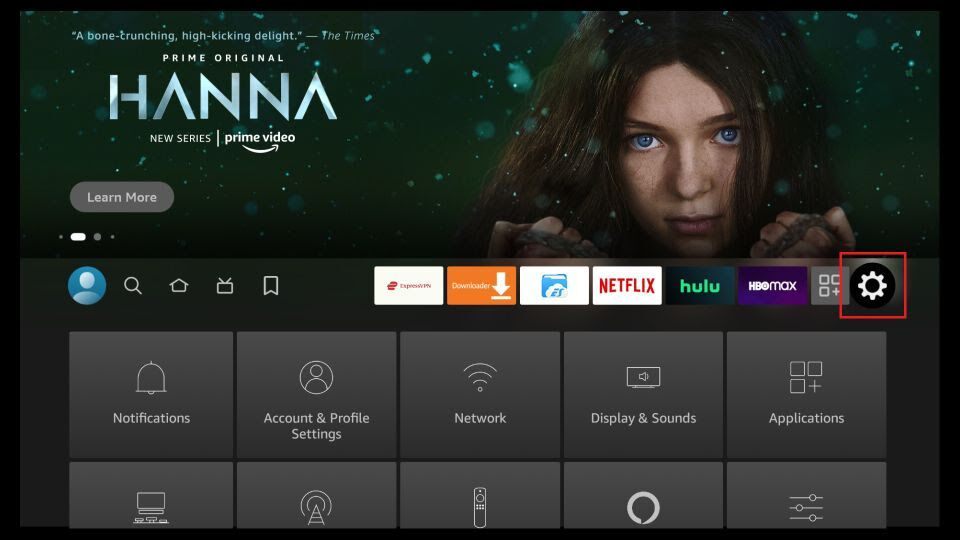
- From the Firestick home screen, open Settings (the gear icon on the right).
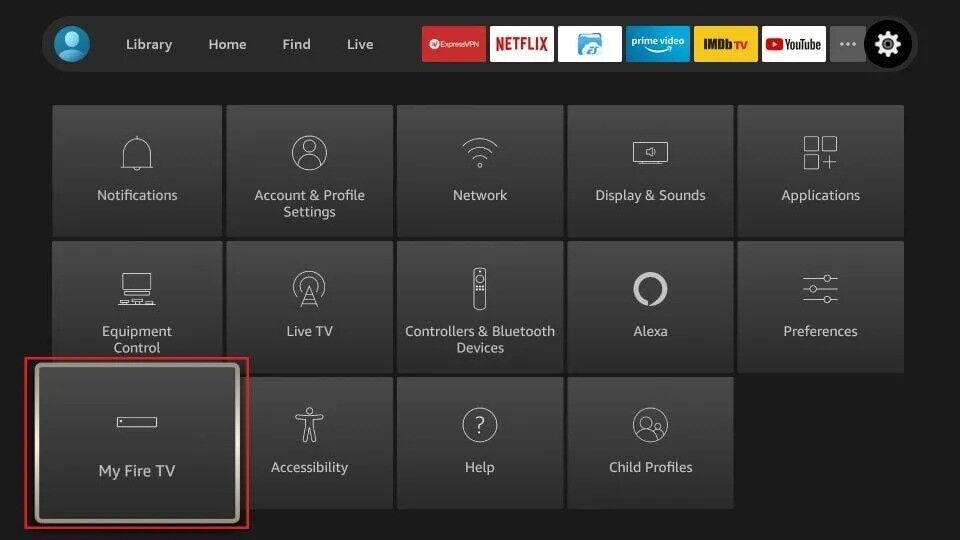
- Select My Fire TV.
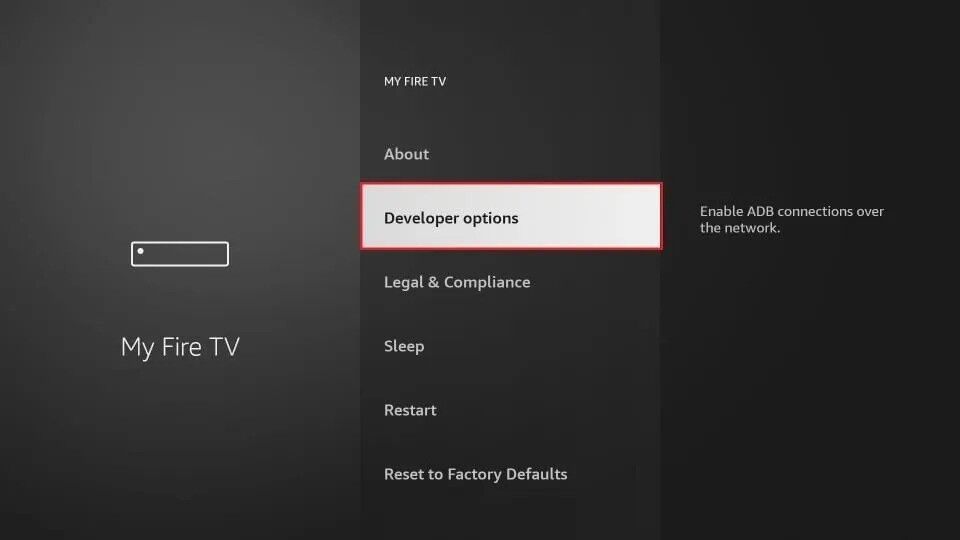
- Select Developer Options. On newer sticks this menu is hidden: go to My Fire TV → About, highlight your Fire TV Stick name and click it seven times to reveal it.
- Select Install unknown apps (older sticks show Apps from Unknown Sources instead).
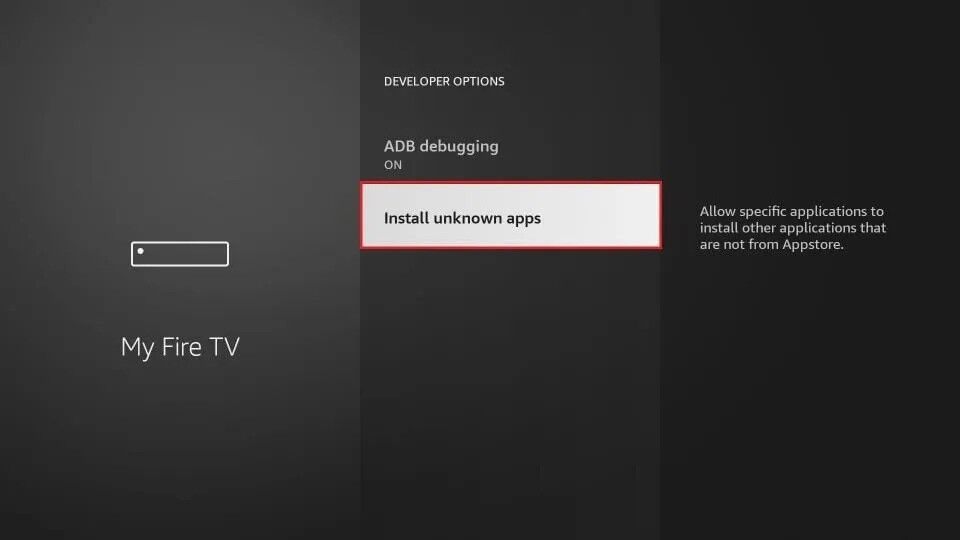
Leave this screen open — you'll flip the switch for Downloader in a moment.
Step 2: Install the Downloader app
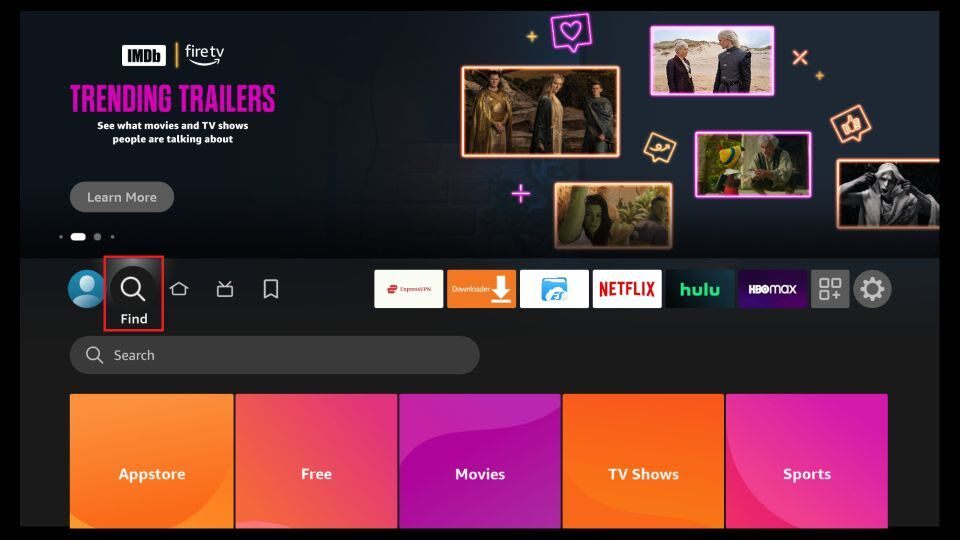
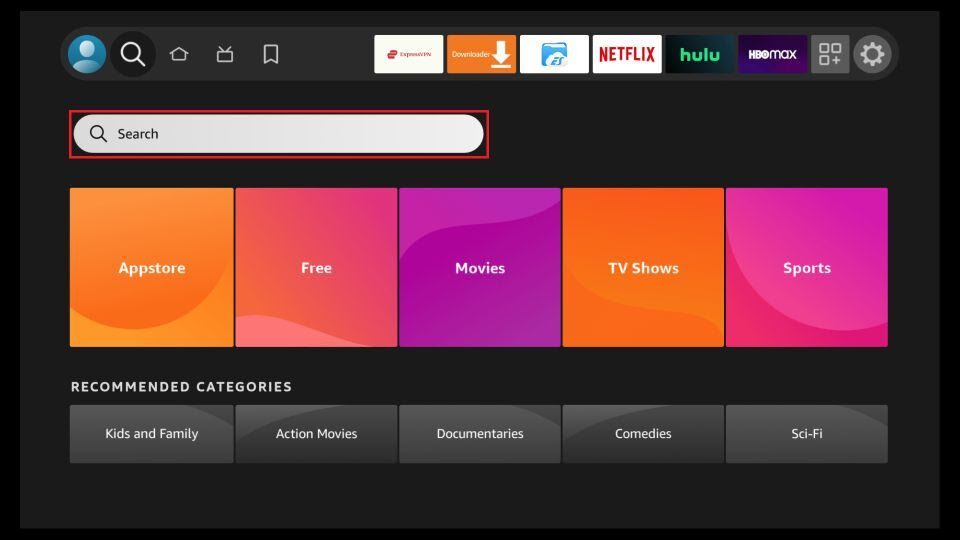
- Press the Home button, then open the Find / Search option.
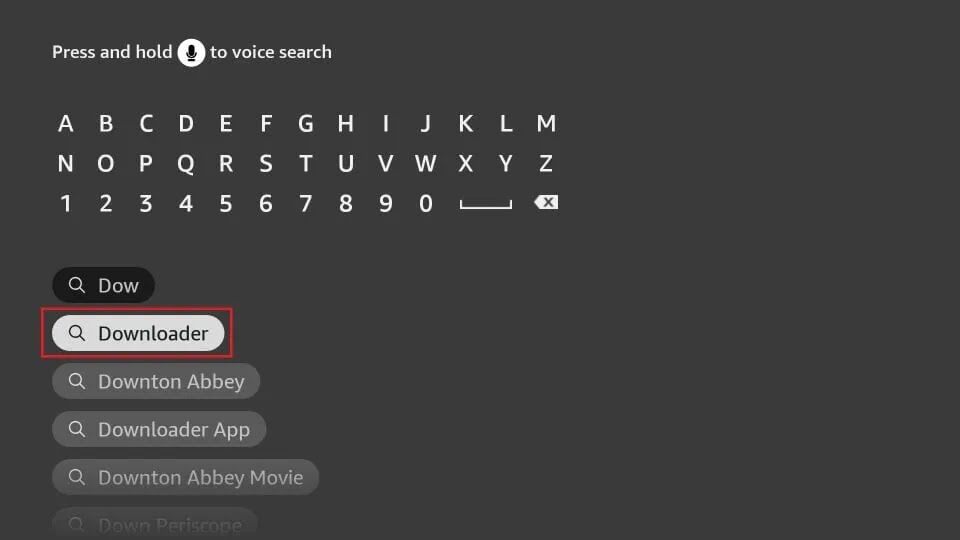
- Type Downloader and select the orange Downloader app by AFTVnews.
- Click Get / Download and wait for it to install.
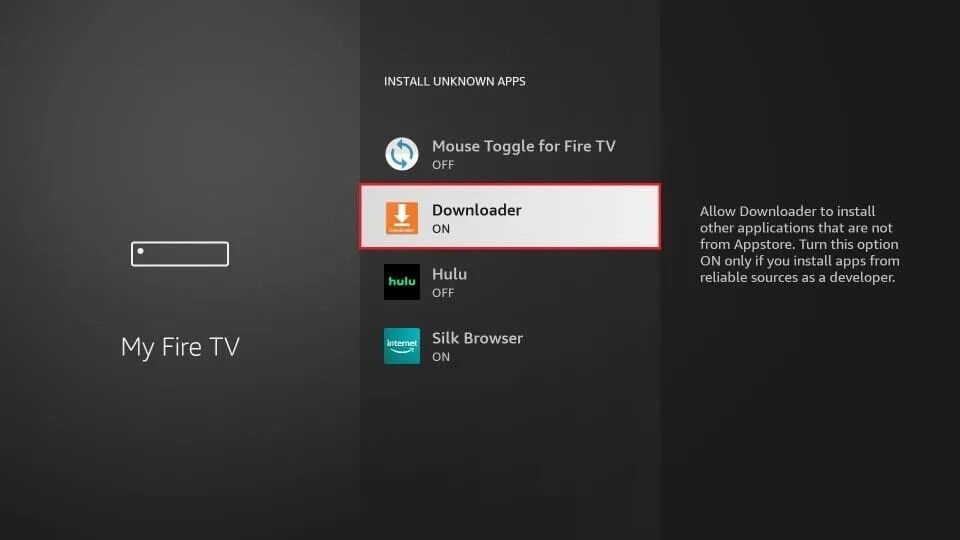
- Go back to Install unknown apps (Step 1) and switch Downloader to ON.
Step 3: Download your IPTV player
- Open Downloader. Allow it file access if asked.
- Click into the URL box on the home screen.
- Enter the download code or address for your chosen player. For IBO Player Pro, enter the code 834339 and press Go.
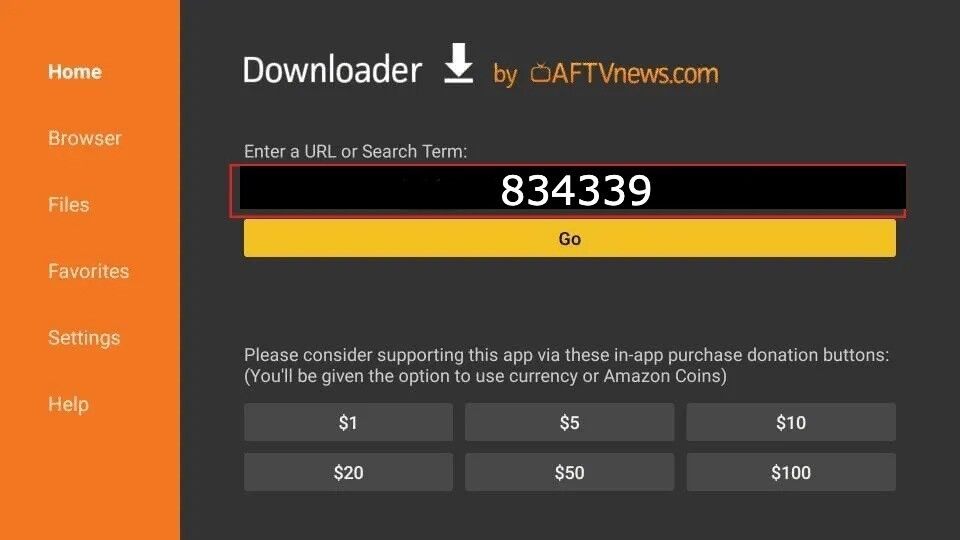
- The APK downloads and the install screen appears. Click Install.
- When it finishes, choose Open (you can also click Delete on the prompt afterwards to remove the leftover APK file and free up space).
Prefer a different player? IPTV Smarters and TiviMate work the same way — see our player comparison if you haven't picked one, or the IPTV Smarters guide for that app's exact steps.
Step 4: Sign in with your Nexlivo details
- Open the player app.
- Choose the Xtream Codes API login option (in IBO Player Pro this is under Change Playlist → Add Playlist → Xtream-Codes-API; some apps need a one-off activation first — see the IBO Player Pro guide).
- Enter the username, password and server URL exactly as they appear in your welcome message. They are case-sensitive.
- Confirm and let the app fetch your channel list.
Step 5: Load the guide and start watching
The first load pulls the full channel list and programme guide — give it a minute on the first run. After that, open Live TV, pick a category and you're watching. Set favourites early; it makes day-to-day use much quicker.
If something is not working
- Downloader says the file can't be installed — the unknown-apps switch from Step 1 isn't on for Downloader. Go back and enable it.
- Login rejected — retype the details rather than judging by eye; a capital I and lowercase l look identical on a TV screen. Full checklist in fixing IPTV login problems.
- Channels load but stutter — that's a network symptom, not a setup error. Work through how to fix IPTV buffering.
- Still stuck? Message support — we'll walk you through it live.